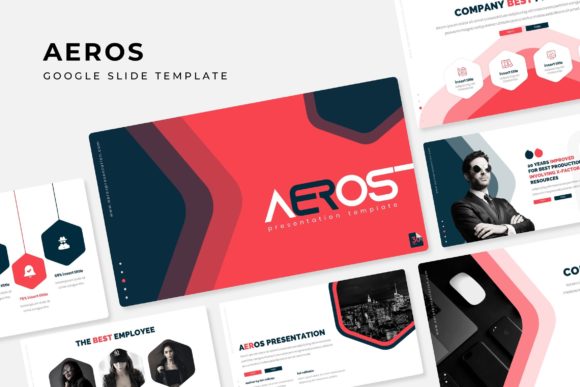
Aeros Google Slide Template: Your Guide to Making the Right Choice
When you need to build a presentation, starting from a blank slide can feel overwhelming. A pre-designed template like the Aeros Google Slide Template promises to save you time and elevate your visual impact. With 150 total slides, five distinct color themes, and a suite of professional graphics, it’s designed to give creators a significant head start. But before you download and dive in, understanding the nuances of such a product is crucial. Making an informed choice means looking past the marketing promises and focusing on how the template will truly integrate into your workflow.
Overlooking the “What’s Included” Details Can Lead to Frustration
A common mistake is assuming “150 slides” means 150 entirely unique, content-ready pages. In reality, the Aeros template is structured as 30 slides for each of its 5 premade colors. This is a smart system for variation, but it’s important to understand that the core layouts repeat across color schemes. The value lies in instantly switching the entire aesthetic of your presentation, not in each color set having completely different slide types. Furthermore, the note stating that photographs in the preview are not included is critical. Many users overlook this, expecting the stunning demo images to be part of the download. They are for illustration only. Your success with the template hinges on your own imagery or stock photos placed into the provided picture placeholder.
The Master Slide Feature: A Powerful Tool Often Misunderstood
The template is built on Master Slides, a foundational feature in both PowerPoint and Google Slides that controls the underlying design of all slides. A mistake beginners make is editing individual slides haphazardly, which can break the consistency and efficiency the Master provides. For instance, if you change a font on one slide instead of on the Master Slide, you’ll have to repeat that change manually everywhere. The Aeros template’s pixel-perfect illustrations and resizable graphics are anchored to this Master layout. The practical advice is simple: learn the basics of Master Slides first. Spend ten minutes understanding how to edit the Master to globally change your color scheme, logo placement, or font, rather than wasting hours making repetitive edits on each slide.
Choosing a Color Variation Based on Preference, Not Context
The five premade color variations are a standout feature, but selecting one just because you like the hue is a superficial approach. The color scheme should serve your presentation’s context and audience. A vibrant, bold palette might energize a creative pitch but undermine the sober tone of a financial report. Before deciding, preview all five PPTX files included. Import them and scroll through the 30-slide set for each color. Look at how the infographics and section breaks render in different palettes. A better method is to match the color variation to your brand colors or the emotional tone of your message. This turns a design feature into a strategic communication tool.
The Infographic and Portfolio Slides: Ready to Use, Not Ready to Fill
The handcrafted infographics and gallery slides are professionally designed, but they are frameworks, not finished content. A misunderstanding is expecting them to auto-populate with your data. You must adapt them. For example, a bar chart infographic provides the clean axis and bars, but you need to adjust lengths, add labels, and input your numbers. The drag-and-drop picture placeholder makes this easier, but you still need to curate and resize your images thoughtfully. A practical step is to gather all your data points and visuals before you even open the template. Then, you can work efficiently, dropping content into these premium layouts rather than searching for assets while designing.
Assuming Compatibility Means Equal Performance
The product includes both standard and widescreen PPTX files, ensuring technical compatibility. However, a subtle mistake is not checking which aspect ratio your presentation venue requires. If you design in widescreen but the projector or screen is standard, your slides may appear squashed or with black bars. Similarly, the free font download link is provided because the template uses specific fonts. If you don’t install these fonts, your text will default to something else, potentially ruining the typographic harmony. Before starting your work, confirm your display setup and download and install the recommended fonts immediately. This preserves the visual integrity the Aeros Google Slide Template is designed to deliver.
Editing Resizable Graphics Without Preserving Quality
The resizable and editable graphics are a major benefit, allowing you to adapt icons and illustrations to your needs. However, a common error is stretching a graphic disproportionately, making it blurry or distorting its clean lines. In PowerPoint or Google Slides, always use the corner handles to resize, maintaining the aspect ratio. If you need to change a color within a vector graphic, use the “Format Shape” or “Fill” options rather than trying to recolor a flattened image. The template’s illustrations are built to be modified intelligently. Treat them like components you can fine-tune, not static pictures you can arbitrarily manipulate.
Evaluating Value Based Only on Slide Count
Aeros offers 150 total slides, which seems like a vast library. But evaluating value purely on quantity overlooks the real metric: applicable, high-quality layouts. You might only use 15 slides from one color variation for your actual presentation. The value isn't in using all 150; it’s in having 30 perfectly designed options for each theme to choose from, including essential slides like section breaks, portfolios, and data visualizations that you’d otherwise build poorly or skip. The better approach is to ask yourself: “Does this set include the specific slide types I consistently need?” Review the included slide categories—like those with placeholder for charts, team photos, or timelines—and see if they match your recurring presentation needs.
Ultimately, the Aeros Google Slide Template is a powerful tool for anyone from entrepreneurs to educators looking to produce professional presentations efficiently. By avoiding these common pitfalls—such as neglecting the Master Slides, choosing colors arbitrarily, or misusing the graphics—you can leverage its full potential. Focus on integrating it into a prepared workflow: have your content and images ready, understand your venue’s specs, and learn the basic principles of editing within a template system. This transforms a downloadable product into a reliable partner for clear, compelling, and visually consistent communication.